Second and last post of the pixel art planet series for Godot 4. In the first post we got the base planet and the clouds, and up to that point there was only one world. Now the same code draws six, and gains polar caps, axial tilt and rings.
The four rocky types share almost everything: the terrain (the noise height h) stays the same, and what changes is the translation from height to color, plus a rule or two per type. Gas giant and moon break from that and get their own calculation.
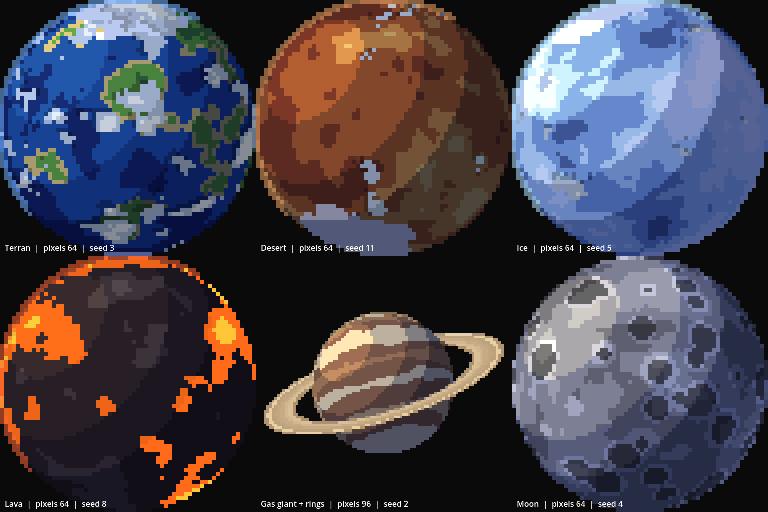
Six planet types
Types first: four rocky planets that only swap the color table, and then the two that break the rule, the gas giant and the moon.
1. Four rocky planets, just swapping the colors
The four rocky types (terrestrial, desert, ice and lava) use exactly the same height noise. Only the ground function changes; it receives the height (already minus sea_level) and returns a color:
vec3 ground(int type, float t, out float glow) {
    glow = 0.0;
    if (type == 1) { // desert: no water, from rust canyons to light dunes
        if (t < -0.12) return vec3(0.45, 0.20, 0.14);
        if (t < 0.0)   return vec3(0.65, 0.34, 0.18);
        if (t < 0.10)  return vec3(0.82, 0.55, 0.28);
        if (t < 0.22)  return vec3(0.90, 0.72, 0.42);
        return vec3(0.95, 0.85, 0.62);
    }
    // ... ice, lava and terrestrial follow the same mold
}
On the desert, where the terrestrial planet has water the planet gets rust tones. On ice, ice blue and white. Each type has five or six color steps, and that alone changes the whole world.
Below are the height in gray and the four types with the same seed, so the continents fall in the same places. Play with sea and notice that the slider doesn’t behave the same on all four:
Two problems showed up here, and both have the same cause:
- With
sea_level = 0.5, the lava covered half the planet and looked like paint. I lowered the lava thresholds to-0.18and-0.08, and dark rock was left between the rivers. - The ice came out all flat blue. I added
0.10to the height for that type only (thet += 0.10in the code) to get more frost.
The lesson: each type has its own thresholds. sea_level alone doesn’t work as a universal knob, because “half the planet” is water in one world and lava in another.
2. Lava that doesn’t go dark in the shadow
Lava can’t darken with the shadow: a lava river is a light source. The ground function also returns a glow (0 or 1), and the stepped shading only applies where glow = 0:
vec3 shaded = col * mix(0.48, 1.08, band);
shaded = mix(shaded, shaded * vec3(0.7, 0.8, 1.2), 1.0 - band);
col = mix(shaded, col, glow * (1.0 - band * 0.5));
On lava, the original color is kept, only a bit weaker in the dark (1.0 - band * 0.5). On the left the glow is off (the lava darkens with the shadow like any rock) and, on the right, on:
3. Climate and atmosphere per type
Two values change per type before any drawing: the atmosphere color and how much cloud the planet has.
vec3 atm = vec3(0.45, 0.70, 1.0);
float cover = cloud_cover;
if (planet_type == 1)      { atm = vec3(0.95, 0.65, 0.40); cover *= 0.35; } // desert: dry
else if (planet_type == 2) { atm = vec3(0.70, 0.90, 1.00); cover *= 0.5; }  // ice
else if (planet_type == 3) { atm = vec3(1.00, 0.40, 0.20); cover = 0.0; }   // lava: no clouds
else if (planet_type == 4) { atm = vec3(0.90, 0.75, 0.55); cover = 0.0; }   // gas giant
else if (planet_type == 5) { cover = 0.0; }                                  // moon: no air
The desert has 35% of the terrestrial planet’s cover, ice 50%, and lava and gas giant have no clouds at all. Each atmosphere has its own color (blue, orange, ice blue, red, cream). The moon doesn’t even draw an atmosphere: atm_k = 0, so the limb stays dry and sharp.
4. Gas giant: bands by latitude
The gas giant has no height and no continents, only bands. The point’s vertical coordinate, p.y, times 7, gives the bands. So the edges aren’t straight, we add noise stretched vertically, which bends each band and looks like turbulence. The band number k = floor(v) picks one of four colors, through a hash:
vec3 gas(vec3 p) {
    float v = p.y * 7.0 + (fbm(p * vec3(1.2, 3.0, 1.2) * scale + seed) - 0.5) * 2.2;
    float k = floor(v);
    float r = hash(vec3(k, seed, 1.7));
    if (r < 0.25) return vec3(0.58, 0.40, 0.30);
    if (r < 0.55) return vec3(0.72, 0.52, 0.36);
    if (r < 0.80) return vec3(0.85, 0.70, 0.50);
    return vec3(0.93, 0.84, 0.66);
}
Since p is already the rotated point, the pattern spins with the planet. With twist at 0 the bands are straight; increase it to see the turbulence:
5. Moon: craters from cellular noise
The moon is different: the crater isn’t drawn, it comes out of a distance. The technique is cellular noise (Worley). Space is divided into a grid, and each cell has a random point (the center of a crater) and a random radius. For each pixel, the shader looks at the 27 neighboring cells (3x3x3) and keeps the smallest distance to the center divided by the crater’s radius:
float crater(vec3 p) {
    vec3 i = floor(p);
    vec3 f = fract(p);
    float best = 9.0;
    for (int x = -1; x <= 1; x++)
    for (int y = -1; y <= 1; y++)
    for (int z = -1; z <= 1; z++) {
        vec3 g = vec3(float(x), float(y), float(z));
        vec3 o = vec3(hash(i + g), hash(i + g + 7.1), hash(i + g + 13.7));
        float rad = 0.30 + 0.30 * hash(i + g + 3.3);
        best = min(best, length(g + o - f) / rad);
    }
    return best;
}
Below 1, the pixel is inside the crater. The color comes from two cuts: within 0.8 radii it darkens (the bottom of the bowl), and between 0.8 and 1.0 it brightens (the raised rim catches light):
float k = crater(p * scale * 1.5 + seed);
if (k < 0.8) col *= 0.60;        // bottom of the bowl
else if (k < 1.0) col *= 1.28;   // raised rim
On the left, the distance k in gray (dark = near the center of a crater). On the right, the finished moon, with the base in three shades of gray (dark maria and a light highland). No circle is drawn anywhere; the circle is the curve of constant distance itself.
The first moon came out with one-pixel craters and looked like dust: the radius was 0.22 to 0.42 of the cell and the grid was dense. I raised the radius to 0.30 to 0.60 and lowered the frequency (scale * 1.5). In pixel art, a crater needs to be at least about 5 pixels to be readable. I also lightened the grays, because the cool tone of the shadow was making everything dark blue.
Try all six
Switch the type and play with the rest. Every planet has the same controls, but each type responds differently.
Poles, tilt and rings
Three details are missing to make the planet look like a real planet: the ice caps at the poles, the axial tilt and the rings.
1. Polar caps
The poles of a planet are regions where the latitude is high. The latitude of the surface point is the absolute value of p.y: near 0 at the equator, near 1 at the poles. The cap is where that latitude passes a line:
float polar = (p.y > 0.0 ? p.y : -p.y * 0.85) + (fbm(p * 4.0 + seed) - 0.5) * 0.3;
if (polar > 1.0 - ice_caps * 0.5) col = vec3(0.92, 0.96, 1.0);
A plain comparison would give a straight edge, like a ruler line. So we add noise to p.y before comparing (the fbm(...) - 0.5 times 0.3): two “magic” numbers and the edge turns irregular. ice_caps controls the size. This applies to terrestrial, desert and ice (the desert gets a cream cap instead of a white one).
2. Tilt: without it the cap doesn’t show up
The planet spins around the vertical axis, and the viewer sees the equator head-on. In that position the poles sit exactly at the edge of the disc, seen from the side, and the cap becomes a thin strip you can barely see. The fix is to tilt the axis toward the viewer, like the axis of the Earth on a desk globe.
The tilt is a rotation around the X axis, applied to the point after the spin (first it rotates around the vertical axis, then the result is tilted):
vec3 tilted(vec3 p) {
    float c = cos(tilt);
    float s = sin(tilt);
    return vec3(p.x, p.y * c + p.z * s, -p.y * s + p.z * c);
}

vec3 p = tilted(vec3(n.x * cos(a) + n.z * sin(a), n.y, -n.x * sin(a) + n.z * cos(a)));
The same tilted() goes into the clouds, so they follow the axis. On the left, tilt = 0: the poles sit at the edge and the cap barely shows. On the right, the tilted planet: the cap becomes a white lid on top. Play with tilt and caps:
3. Why the sign of the tilt angle is inverted
On the first attempt the tilt went the wrong way: the south pole showed up instead of the north. The reason: what the shader computes is the point on the planet from the point on the screen, that is, the way back. It’s the inverse rotation, so every angle comes out with its sign flipped. Flipping the sign of the sine fixed it.
Compare two opposite values of tilt. In one we see the north pole, in the other the south (which is a bit smaller, as the last section on the poles explains):
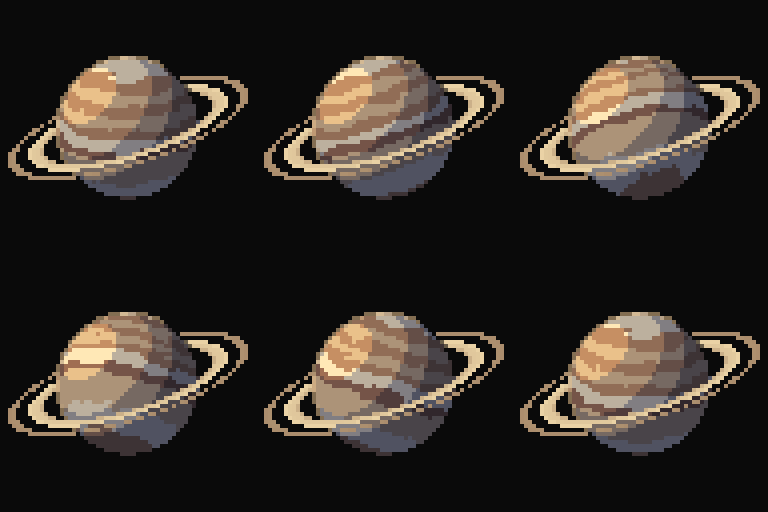
4. Rings: an ellipse
A planet’s ring is a circle seen from the side, and a circle seen from the side is an ellipse. The shader has no camera and no 3D for the rings, just a screen coordinate:
- Rotate the screen coordinate by
ring_angle(the tilt of the ring in the image). - Divide the vertical axis by
ring_open. In that space the ring is a normal circle, andrr = length(...)is the distance to the center. - The ring is the band where
0.68 < rr < 0.98.
vec2 lq = vec2(qs.x * cos(ring_angle) + qs.y * sin(ring_angle), -qs.x * sin(ring_angle) + qs.y * cos(ring_angle));
float rr = length(vec2(lq.x, lq.y / ring_open));
if (rr > 0.68 && rr < 0.98) {
    float r = hash(vec3(floor((rr - 0.68) * 30.0), seed, 5.0));
    if (r > 0.22) {
        ring = vec4(mix(vec3(0.55, 0.42, 0.32), vec3(0.93, 0.84, 0.66), r), 1.0);
    }
}
Dividing by a small number flattens the circle into an ellipse, which simulates seeing the ring from the side. The stripes and gaps are the same idea as the gas giant’s bands, only over the distance from the center instead of the latitude: floor((rr - 0.68) * 30) numbers the bands, a hash of each number gives the color, and below a threshold the band becomes a transparent gap.
Front and back
The rings pass in front of the planet on one half and behind it on the other, and that comes from a sign comparison: the lower half on screen (lq.y > 0) passes in front, and the upper one stays behind. Behind the disc it disappears, because the planet is drawn on top. In front, it’s drawn on top of the planet. There’s no real 3D.
In the second frame below, the front is blue and the back is red. The third is the complete result. Drag opening (1 is seen from above, near 0 is from the side) and angle:
The planet’s shadow on the ring
The ring also receives the planet’s shadow, on the side opposite the light, near the line that passes through the center in the light’s direction. It’s a 2D approximation, and it only applies to the back half. On the first attempt the front half darkened too, and the ring looked dirty.
Rings need more pixels
With rings on, the planet shrinks to take up about 55% of the frame, and pixels now applies to the whole frame. The result: at 64 pixels the planet is only about 35 wide and loses detail, and the rings come out thin. The demos above use 96. To make rings worthwhile, the ideal is to raise pixels to 96 or 128.
5. South pole cap turning into a flat block
Since the axis is tilted forward, the south pole sits just behind the bottom edge, and only a strip of the cap showed up there. In the viewer on the itch page, at some angles, that strip turned into a flat blue-gray block (on the desert, it looked like a stain). The fix was to make the south cap smaller than the north one: the south latitude counts as 0.85x in the comparison (the -p.y * 0.85 in the code from the first section on the poles).
The first attempt used 1.25, and I got the direction wrong: multiplying the latitude by more than 1 enlarges the cap, because the condition is latitude > threshold. To shrink it, you multiply by less than 1.
On the desert below, on the left the south pole is 1.0 (same as the north) and on the right the factor is the slider’s (0.85 by default). Look at the bottom pole:
I found the stain by spinning the planet in the viewer, not in the GIF images. It’s worth testing both: the GIF shows a single angle, the viewer lets you spin to all of them.
Everything together
The complete planet, with all the controls. Switch the type, turn on the rings, tilt the axis:
The end
The complete shader, with the six types, clouds with shadows, caps, tilt and rings, is on itch.io: Pixel Planet. It’s free and CC0 (public domain), so you can use it in a commercial game and modify it freely. The page has a viewer that runs the real shader in the browser, with sliders, live code editing and image download. The shader is a single file (.gdshader), to drop onto a Godot 4 ColorRect.