This is the first of two posts about making a pixel art planet for Godot 4. The planet comes out of an empty square, with no texture at all: every pixel works out its own color. It all started with the Pixel Planet Generator by Deep-Fold: it’s beautiful, free, MIT licensed, and it’s what made me want to try the idea as a shader. If you like pixel art planets, go download theirs too.
This part covers the full planet, with land and sea: sphere, 3D noise, color and light, then clouds with shadows, the atmosphere and how to make the GIF restart without a jolt. The second post adds six planet types, poles, axial tilt and rings.
The final result, with an in-browser viewer and a free download (CC0), is on itch.io.
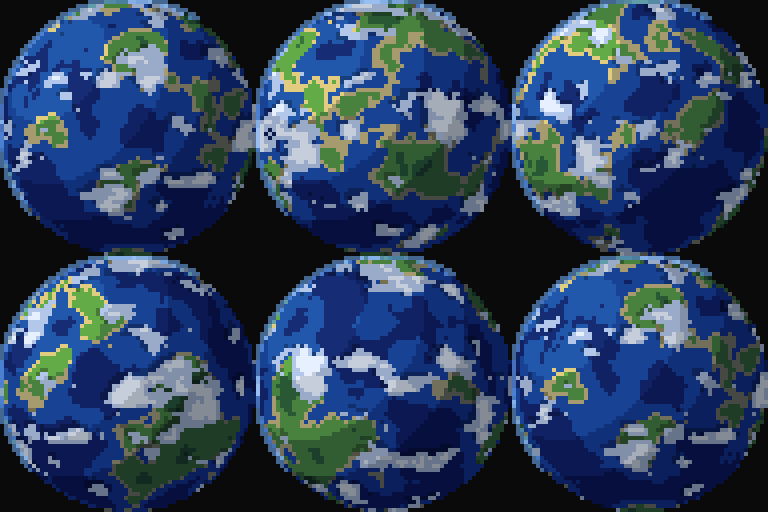
The base planet
The ground first, no clouds: sphere, terrain, color by height and stepped light.
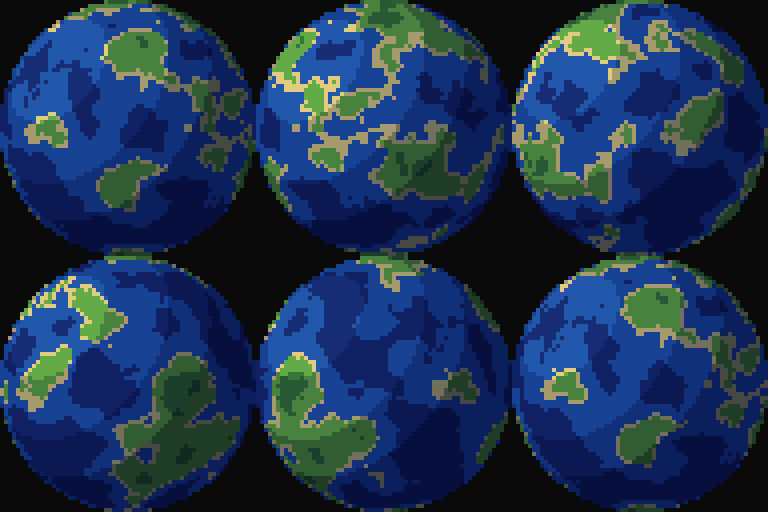
The shader runs once for every pixel of the square and only has to answer one question: what color is this pixel? The whole planet comes out of that answer.
1. Pixelating the coordinate
Godot hands over the UV coordinate from 0 to 1, continuous. To look like pixel art, we round UV to a grid of pixels by pixels and use the center of each little square:
vec2 uv = (floor(UV * float(pixels)) + 0.5) / float(pixels);
Every “big” pixel gets the same uv across its whole area, so the rest of the calculation gives a single color per square. The planet has whatever resolution we choose (64 by default), independent of the node’s size on screen.
Below, the coordinate becomes color (red is u, green is v). With a low pixels you can see the grid; with a high pixels, the gradient looks continuous.
2. From disc to sphere
With q = uv * 2.0 - 1.0, the coordinates go from -1 to 1 and the center becomes (0, 0). A pixel is inside the disc if its distance to the center is at most 1, that is, if x² + y² <= 1. That’s dot(q, q):
vec2 q = uv * 2.0 - 1.0;
float d = dot(q, q);
if (d > 1.0) {
    COLOR = vec4(0.0);   // outside the disc: transparent
}
To pretend the disc is a ball, it still needs depth. On the surface of a sphere of radius 1, x² + y² + z² = 1, so the z of the point facing the camera is:
vec3 p = vec3(q.x, -q.y, sqrt(1.0 - d));
Done: every pixel of the disc became a 3D point (x, y, z) on the surface of a sphere. The -q.y is only there because the screen’s y grows downward.
On the left, what the if cuts out (the disc). On the right, each pixel’s z as gray: bright in the center, where the surface faces the camera, and dark at the edge, where it turns sideways.
3. Rotate the point, not the image
To make the planet spin, we rotate that 3D point around the vertical axis, with the sine and cosine of TIME * spin:
float a = TIME * spin * 6.2831853;
p = vec3(p.x * cos(a) + p.z * sin(a), p.y, -p.x * sin(a) + p.z * cos(a));
This is different from sliding a texture across the disc. Since the point rotates in 3D before the color is looked up, the continent “wraps around” at the edges like on a real sphere: it gets squeezed near the limb and disappears behind.
Compared with a checkerboard: on the left, the texture slides across the disc (it looks like a sticker passing by). On the right, the 3D point rotates and the checkerboard follows the curvature.
4. Continents: 3D noise
The terrain is a height h for each point on the surface. The height comes from value noise: a number is drawn at each corner of a grid and blended smoothly between them. Adding up four layers, each with double the frequency and half the strength (fbm), gives terrain with big continents and small details.
float fbm(vec3 p) {
    float v = 0.0;
    float a = 0.5;
    for (int i = 0; i < 4; i++) {
        v += a * noise(p);
        p = p * 2.03 + 11.7;
        a *= 0.5;
    }
    return v;
}

float h = fbm(p * scale + seed * 7.31);
The important choice is that the noise is 3D, sampled at the surface point p. 2D noise over latitude and longitude would have a seam where the map closes and would stretch everything at the poles. In 3D, a point on the sphere only has neighbors around it: there is no seam and no special pole. And seed just shifts the sampling point: another number, another world.
The hash that draws the corners doesn’t use sin, only fract and multiplications, because sin with a large number gives different results from one GPU to another.
To see the difference, the sphere below is turned with a pole toward the camera. On the left, 2D noise over longitude and latitude: the pattern pinches around the pole and a seam shows up where the map closes. On the right, 3D noise at the surface point: no seam and no special pole.
The height alone, in gray, and the same height cut into two colors by sea_level (this was the shader’s first result, still without color by height). Play with sea and scale:
5. Color by height, with few colors
The height becomes color through a ramp of six bands, comparing t = h - sea_level:
if (t < -0.12)      col = vec3(0.08, 0.16, 0.42);  // deep water
else if (t < 0.0)   col = vec3(0.12, 0.32, 0.62);  // shallow water
else if (t < 0.03)  col = vec3(0.82, 0.74, 0.46);  // sand
else if (t < 0.14)  col = vec3(0.36, 0.62, 0.26);  // grass
else if (t < 0.24)  col = vec3(0.20, 0.42, 0.22);  // forest
else                col = vec3(0.52, 0.50, 0.46);  // rock
Six hand-picked colors are what make it look like pixel art. A continuous gradient between blue and green would ruin the effect, because pixel art is made of flat areas with hard edges. sea_level is the fraction of the planet that sits under water: raising the number floods continents.
6. Stepped light
The light uses the sphere’s normal, which is the surface point itself without the rotation. That way the light stays still on screen and the planet spins underneath it, like the real Sun. dot(normal, light) gives a number from 0 (shadow) to 1 (full sun), and instead of using that number directly we cut it into a few steps:
vec3 n = vec3(q.x, -q.y, sqrt(1.0 - d));
float lit = clamp(dot(n, normalize(light_dir)), 0.0, 1.0);
float step_f = float(shade_steps);
float band = floor(lit * step_f + 0.35) / step_f;
col *= mix(0.48, 1.08, band);
col = mix(col, col * vec3(0.7, 0.8, 1.2), 1.0 - band);
With shade_steps = 3 the planet gets three bands of light with hard edges, which is the typical shading in pixel art. Just the light, no color, with the number of steps on the slider:
The last line makes the shadow cool (pulled toward blue) and the light warm. Darkening by just multiplying by a gray number leaves the image dirty; cooling the shadow keeps the color alive.
A mistake from this stage: the first version of the shadow was mix(0.30, 1.1, band). The dark side came out muddy and the deep water turned almost black, with no way to see the terrain. Raising the floor to 0.48 fixed it. The shadow side has to stay readable.
Try the base planet
Everything together: the same calculation as the examples above, in JavaScript, running on the CPU (the code is in this post’s playground.js file). Play with sea to flood the continents, with scale to change their size and with steps to watch the light go from hard bands to almost continuous.
Clouds, shadow and atmosphere
So far the planet is only ground and light: it looks like a billiard ball with continents. It needs a layer on top.
1. A cloud layer
A cloud is just another layer of noise. We run a second fbm, with a different seed and scale from the ground, and wherever the value passes a threshold we paint it white. To give a sense of layering, the cloud spins at a different speed from the ground.
float c = fbm(pc * scale * 1.6 + seed * 3.7 + 40.0);
if (c > 0.78 - cloud_cover * 0.4) {
    vec3 cloud = vec3(0.92, 0.95, 1.0) * mix(0.55, 1.0, band);
    col = mix(col, cloud, 0.92);
}
The white also goes through the light bands (band), so a cloud on the dark side turns grayish instead of neon white. It already works, but the clouds come out in big, hard blocks that look like stains:
2. Choosing the threshold: why no cloud showed up
The initial threshold was 1.0 - cover * 0.6, and no cloud appeared. The reason: adding up four layers of noise doesn’t give a uniform value between 0 and 1. The layers compensate for each other, and the result clusters around 0.5, almost never going past 0.73. The histogram is a bell.
The chart below counts the fbm value at 20 thousand points (gray) and paints red whatever passes the threshold, that is, whatever would become cloud. Drag the threshold: above about 0.75, almost no red bar is left.
The final formula ended up as 0.78 - cover * 0.4, and a cover of 0.5 gives a threshold near 0.58. The lesson: pick the threshold of summed noise by looking at the distribution, not by guessing. With cover = 0.6 the planet came out almost entirely white, which is why the default is 0.5.
3. Bands instead of stains
To make the clouds look like weather rather than stains, we stretch the noise horizontally. Just multiply the point’s vertical axis before sampling the noise:
float clouds(vec3 n, float angle) {
    vec3 pc = vec3(n.x * cos(angle) + n.z * sin(angle), n.y, -n.x * sin(angle) + n.z * cos(angle));
    return fbm(pc * vec3(1.0, 1.7, 1.0) * scale * 1.5 + seed * 3.7 + 40.0);
}
With y * 1.7, the noise varies faster vertically, so the stains stretch along the lines of latitude, and we read that as bands of cloud. The first attempt was 2.4 and gave lines that were too thin. Drag bands and see:
The edge of the clouds got a second color: in the 0.07 just above the threshold, instead of white, a cool bluish tone. With two colors the cloud gains volume without needing a bigger palette.
4. Cloud shadows on the ground
The cloud’s shadow on the ground needs nothing new. It’s the same cloud sampled slightly toward the light: if there’s a cloud at that shifted point and none at the pixel itself, the ground is under a shadow, and gets darker.
float c  = clouds(nv, a * 2.0);
float sh = clouds(normalize(nv - normalize(light_dir) * 0.07), a * 2.0);
if (c > thr) {
    // cloud
} else if (sh > thr) {
    col *= 0.72;   // ground under a cloud
}
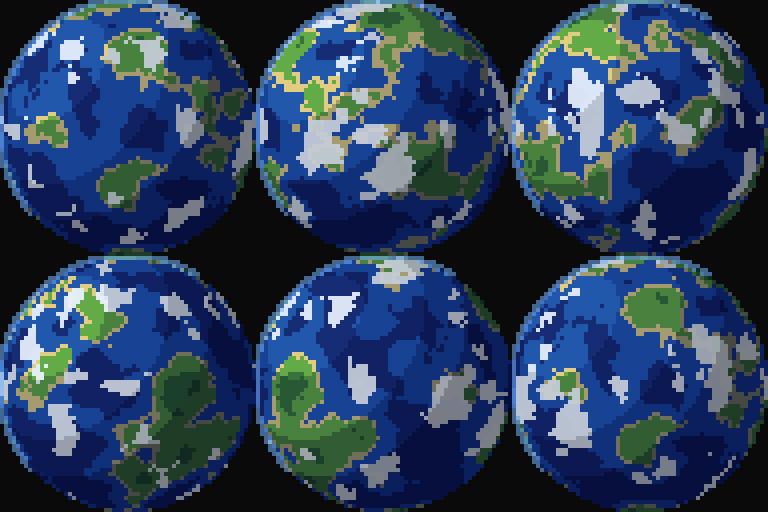
One function, two calls. The shadow is subtle (0.72 brightness), so the third frame shows just the calculation: cloud in white, ground in shadow in black and the rest in gray.
5. Atmosphere
The atmosphere is two small things, both only on the lit side:
- A light blue band inside the edge of the disc. The depth
n.znear the edge is almost 0, so1.0 - n.znear 1 marks the limb. - A halo 1 pixel outside the disc.
float edge = 1.0 - n.z;
if (edge > 0.82 && band > 0.0) col = mix(col, atmosphere.rgb, 0.55);
// outside the disc, on the light side
float halo = 1.0 + 2.0 / float(pixels);
float side = clamp(dot(normalize(vec3(q.x, -q.y, 0.0)), normalize(light_dir)) + 0.3, 0.0, 1.0);
COLOR = d < halo * halo && side > 0.4 ? vec4(atmosphere.rgb, 0.55) : vec4(0.0);
6. Why the GIF jolted when it restarted
The GIFs in this post are loops of 120 frames at 15 frames per second. The example scene spins the planet at spin = 0.125, one turn every 8 seconds, so the last frame is the first one again.
With the clouds this broke. They spun at 1.4x the speed of the ground. After 8 seconds the ground had made one turn and the clouds 1.4, so the last frame had clouds in a different place from the first: a jump at the end of the loop.
The rule is simple: the ratio between the speeds has to be a whole number. With clouds at 2x, when the ground makes one turn the clouds make two, and everything returns to the same place. That’s why in the shader the call is clouds(nv, a * 2.0).
Drag ratio below. On the left is the GIF’s first frame and, in the middle, the last. On the right, the difference between the two (black = equal, bright = different). It only goes fully black at 1, 2 or 3.
In the next post
The planet now has ground, light, clouds, shadow and atmosphere, but it’s a single world: land and sea. In the next post the same shader draws six different planets, and the caps, the tilt and the rings come in.