Have you ever stopped to think about how the information of a pixel is stored and displayed on the screen?
The curiosity behind this has always been on my mind, and the truth is that there are several ways to do it, each with its own specifics.
In this post, we will explore a simple way to structure and render pixels on a canvas in Javascript, and in the future cover the same in other contexts, like OpenGL, WebGL, DirectX, Vulkan, etc.
Note: This post is just a learning exercise. We won’t worry about performance, and it may not be ideal
for use in production.
What is a pixel?
A pixel is the smallest unit of an image on a digital screen, representing a single point on a grid. It defines a specific color, usually through combinations of red, green and blue (RGB).
Besides the RGB channels, it is also common to have an opacity channel, called Alpha (A), and it is usually stored in a one-dimensional array structure.
How pixels can be organized using arrays:
Before we draw a pixel, we need a place to draw!
Just like in real life, to make a painting we need a surface to paint on, and in computer graphics we call it a canvas.
And our canvas is nothing more than a structure that stores the color and opacity data of each pixel, to then be shown on your monitor.
There are several ways to structure a canvas’s data, the most common being Arrays and Matrices:
Matrix / Two-dimensional Array:
Using a matrix, we can represent the canvas as a grid of pixels laid out in rows and columns. Each pixel can be easily accessed through its coordinates (x, y).
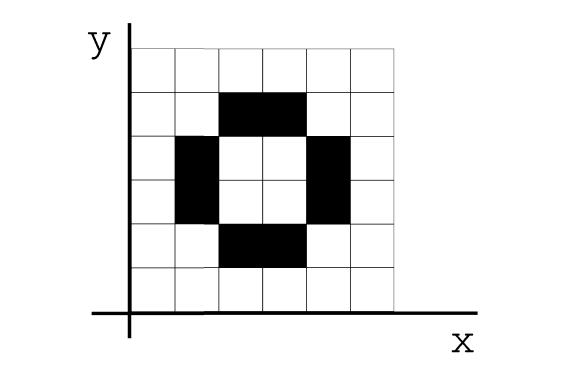
One way to visualize this structure in code would be the following:
const canvas = [
    // x = 0         x = 1            x = 2 ...
    [r, g, b, a,     r, g, b, a,      r, g, b, a,      ...], // y = 0
    [r, g, b, a,     r, g, b, a,      r, g, b, a,      ...], // y = 1
    [r, g, b, a,     r, g, b, a,      r, g, b, a,      ...], // y = 2 ...
]
One-dimensional Array:
Although we visually think of an image as a grid (two-dimensional), computers often store image data in a one-dimensional array.

For example, a 10x10 pixel image would be represented by an array of 400 elements (10 × 10 pixels × 4 channels), where each group of four consecutive elements represents the color components of a pixel (red, green, blue and alpha).
const canvas = [r, g, b, a, r, g, b, a, r, g, b, a, ...]
We will use the One-dimensional Array, since it is simpler to deal with and is also the structure used by the Javascript canvas.
But how would I find the x and y in my one-dimensional array?
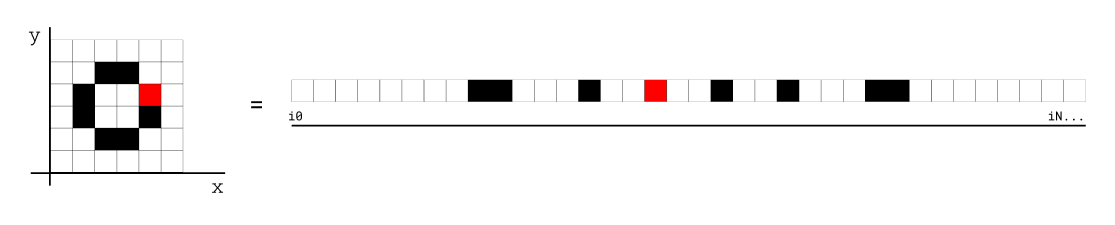
Through the index, it is possible to get the x and y corresponding to that pixel:
$$
{index} = (y \times \text{canvas width} + x) \times 4
$$
But where does that 4 come from?
Simple: as said before, we use 4 values to define our pixel: RGBA, which respectively represent the colors Red, Green and Blue, followed by an Opacity value for that pixel.
If you don’t need opacity, we can even reduce it to use only the color channels, in which case the calculation would look like this:
$$
{index} = (y \times \text{canvas width} + x) \times 3
$$
And if you want to go back to 1930, ignoring colors completely, we can have a structure with just one gray channel, making the calculation even simpler:
$$
{index} = (y \times \text{canvas width} + x)
$$
One important thing to keep in mind is that pixels are normally drawn from top to bottom, which means the
yaxis is inverted.
In other words: The first row at the top of the screen would have itsyequal to0, while the last row would haveyequal to the canvas height.
I still think a matrix would be easier… what other advantages do I get from using a one-dimensional array?
- Access Efficiency: Using arrays allows fast and efficient access to pixel data. This is crucial for performance in graphics operations, such as rendering, image editing and animation.
- Simple Manipulation: Arrays make it easy to manipulate data, letting you quickly change the color of a pixel or apply effects to a specific area of the image.
- Integration with Algorithms: Many operations and algorithms in image processing (like filters and transformations) are simpler and more efficient when the data is organized in arrays, because they can easily iterate over the elements.
- Compatibility with Graphics APIs: Many graphics libraries and APIs, like the Canvas API in JavaScript, use this data structure to make communication and manipulation of images easier.
In short, organizing pixels in an array offers efficiency, simplicity and compatibility with image processing operations, making it a standard method in graphics programming.
Time to code
Now that we have finished the theory, we can demonstrate how to use it with the Javascript canvas.
First, we need a canvas element in our html:
<canvas id="canvas"></canvas>
Then, we access this canvas from Javascript, and get its 2D context:
const canvas = document.getElementById('canvas');
const ctx = canvas.getContext('2d');
The context is what we will use to draw on our canvas. In this case we will use the 2d context, but we can also use other contexts, like WebGL, which is an implementation of OpenGL for the web. (doc)
Set whatever size you think best for your canvas; in my case, I’ll use 20x20:
canvas.width = 20
canvas.height = 20
And to finish the initial setup, let’s get the one-dimensional array that is currently being used by our canvas, so that we can modify it:
const imgData = ctx.getImageData(0, 0, canvas.width, canvas.height);
Now that we have our color array, we can set the value of our first pixel:
imgData.data[0] = 255   // r;
imgData.data[1] = 0     // g;
imgData.data[2] = 0     // b;
imgData.data[3] = 255   // a;
The RGBA values will always range between 0 and 255; if you prefer, you can also write them in hexadecimal! We’ll do that for our second pixel:
imgData.data[4] = 0x33  // r;
imgData.data[5] = 0x12  // g;
imgData.data[6] = 0xee  // b;
imgData.data[7] = 0xff  // a;
You must have noticed that although we set the values in our array, nothing changed on the canvas.
We need to tell the canvas when our changes are ready to be shown, guaranteeing that we won’t get an incomplete result drawn on the canvas, and also allowing us to optimize GPU calls by doing a single operation instead of several small ones.
To do this, just call the context’s putImageData method, passing our color array and the origin (x, y) where we want to draw on the canvas (in this case, we want to draw at the top left of the screen, that is, x=0 and y=0):
ctx.putImageData(imgData, 0, 0);
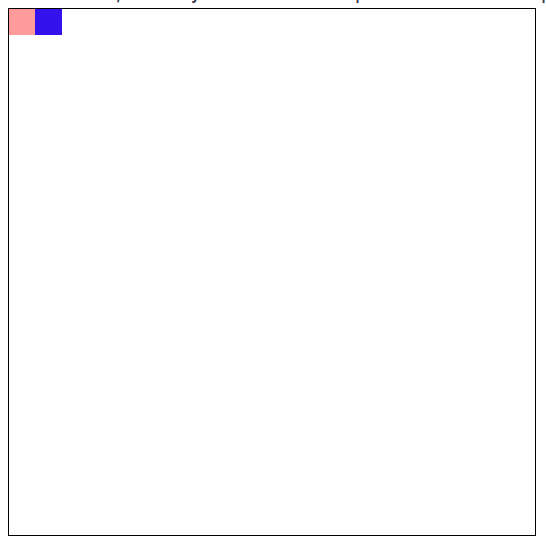
With that, you should already be able to see two pixels drawn on your canvas:
canvas {
    border: 1px solid black;    /* Adding a thin black border so you can better see the size of the canvas */
    min-width: 50%;             /* Setting a minimum size so I can see my 20x20 canvas, adjust as you like. */
    image-rendering: pixelated; /* Removing the anti-aliasing filter. It is usually very useful on large images, but for pixel art and very small canvases it ends up blurring the image. */
}
Done! Now your canvas should look just like mine.
Removing the repetitive work
Now that we can draw 2 pixels on the screen, we definitely don’t want to draw all the others by hand, calculating which index each channel goes to.
So let’s use the formula we learned above and create a function that lets us create pixels at will, passing just their coordinate and color channels.
In case you don’t remember the formula, here it is:
$$
{index} = (y \times \text{canvas width} + x) \times 4
$$
(Remember to replace the 4 with another value if you are using fewer or more channels)
Our function should receive a reference to the canvas color array, its position (x, y) and its RGBA color channels:
const putPixel = (imgData, x, y, r, g, b, a) => {
    // Index calculated using the formula above
    const index = (x + y * imgData.width) * 4;
    // Each channel uses the index to position itself
    // correctly in the array where the value must be inserted
    imgData.data[index + 0] = r;
    imgData.data[index + 1] = g;
    imgData.data[index + 2] = b;
    imgData.data[index + 3] = a;
}
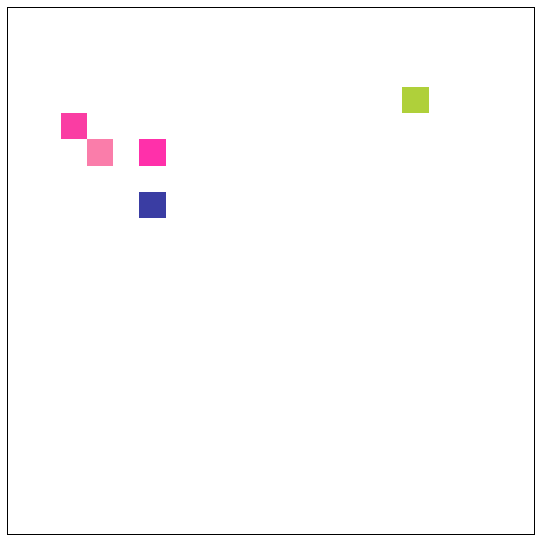
With this, we just need to call the function a few times:
putPixel(imgData, 5, 5,  0xFF, 0x30, 0xAA, 0xFF)
putPixel(imgData, 15, 3, 0xAF, 0xD0, 0x3A, 0xFF)
putPixel(imgData, 2, 4,  0xFA, 0x3D, 0xA3, 0xFF)
putPixel(imgData, 5, 7,  0x3A, 0x3D, 0xA3, 0xFF)
putPixel(imgData, 3, 5,  0xFA, 0x7D, 0xAA, 0xFF)
And we already have a result:
With this we close this post about how to draw a pixel, but don’t leave yet! Below I’ll leave a list of exercises and solutions!
In the future, I also intend to cover more computer graphics topics:
- Drawing lines, rectangles, triangles, circles and so on from scratch!
- Learning to deal with OpenGL, WebGL, Vulkan, and so on.
- More about canvas in Javascript!
- And also other subjects that have nothing to do with this!
Exercises:
The solution to the exercises is right below, but try them first!
Exercise 3 - Interactive canvas!
Try creating some interaction with your canvas!
Exercise solutions:
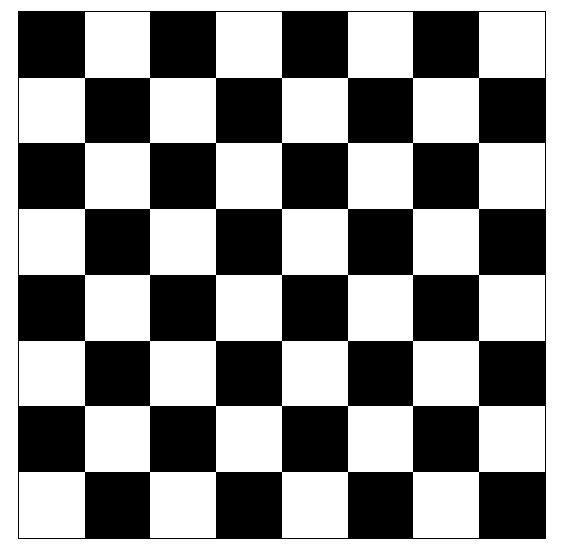
Exercise 1:
canvas.width = 8
canvas.height = 8

const black = [0x00, 0x00, 0x00, 0xFF]
const white = [0xFF, 0xFF, 0xFF, 0xFF]
for (let x = 0; x < canvas.width; x++) {
    for (let y = 0; y < canvas.height; y++) {
        const isWhite = ((x+y) % 2 !== 0);
        const color = isWhite ? white : black;
        putPixel(imgData, x, y, ...color);
    }
}
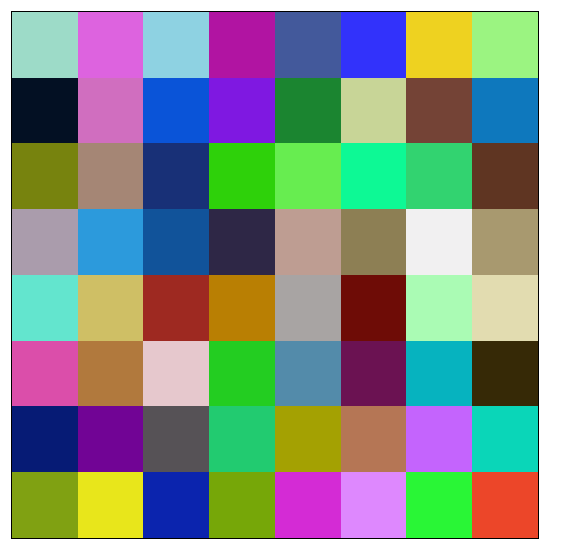
Exercise 2:
for (let x = 0; x < canvas.width; x++) {
    for (let y = 0; y < canvas.height; y++) {
        putPixel(imgData, x, y, Math.random() * 255, Math.random() * 255, Math.random() * 255, 255);
    }
}
Exercise 3:
function getMouesPosition(e) {
    const mouseX = e.offsetX * canvas.width / canvas.clientWidth | 0;
    const mouseY = e.offsetY * canvas.height / canvas.clientHeight | 0;
    return {x: mouseX, y: mouseY};
}

const clear = (imgData) => {
    for (let x = 0; x < canvas.width; x++) {
        for (let y = 0; y < canvas.height; y++) {
            putPixel(imgData, x, y, 0xFF, 0xFF, 0xFF, 0xFF);
        }
    }
}

canvas.addEventListener("mousemove", (e) => {
    const {x, y} = getMouesPosition(e);
    const imgData = ctx.getImageData(0, 0, canvas.width, canvas.height);
    putPixel(imgData, x, y, Math.random() * 255, Math.random() * 255, Math.random() * 255, 255)
    ctx.putImageData(imgData, 0, 0);
})

resetBtn.addEventListener("click", (e) => {
    const {x, y} = getMouesPosition(e);
    const imgData = ctx.getImageData(0, 0, canvas.width, canvas.height);
    clear(imgData)
    ctx.putImageData(imgData, 0, 0);
})